Overview:
We’re expanding the capabilities of the ITI Digital Automated Events Calendar. Your calendar will bring in more events, with higher accuracy, from a wider range of online sources within your geofence. We’ve also updated the DXP Client Dashboard to make filtering and reviewing those events easier.
What's Changing:
More Sources, More Local Events: Expanded sourcing brings in events from official ticketing sites, arts and culture organizations, music venues, festivals, community calendars, and local media—giving visitors a broader view of what’s happening in your destination.
Focused on Your Destination: Events will continue to be sourced within your destination’s established geographic area. Your existing settings remain in place.
AI-generated illustrations for Events Without Images: When a source does not provide an event image, we create an AI-generated illustration to give the listing a visual presentation. Your team retains editorial control and can review, replace, or remove this content.
Fewer Duplicates, Greater Accuracy: When the same event appears across multiple sources, we merge those records into a single listing. We also check dates, locations, and source links to improve accuracy. This builds on the AI Events Deduplication, released this Summer.
Key Dashboard Updates
1. Unified "Online Sources" Filter
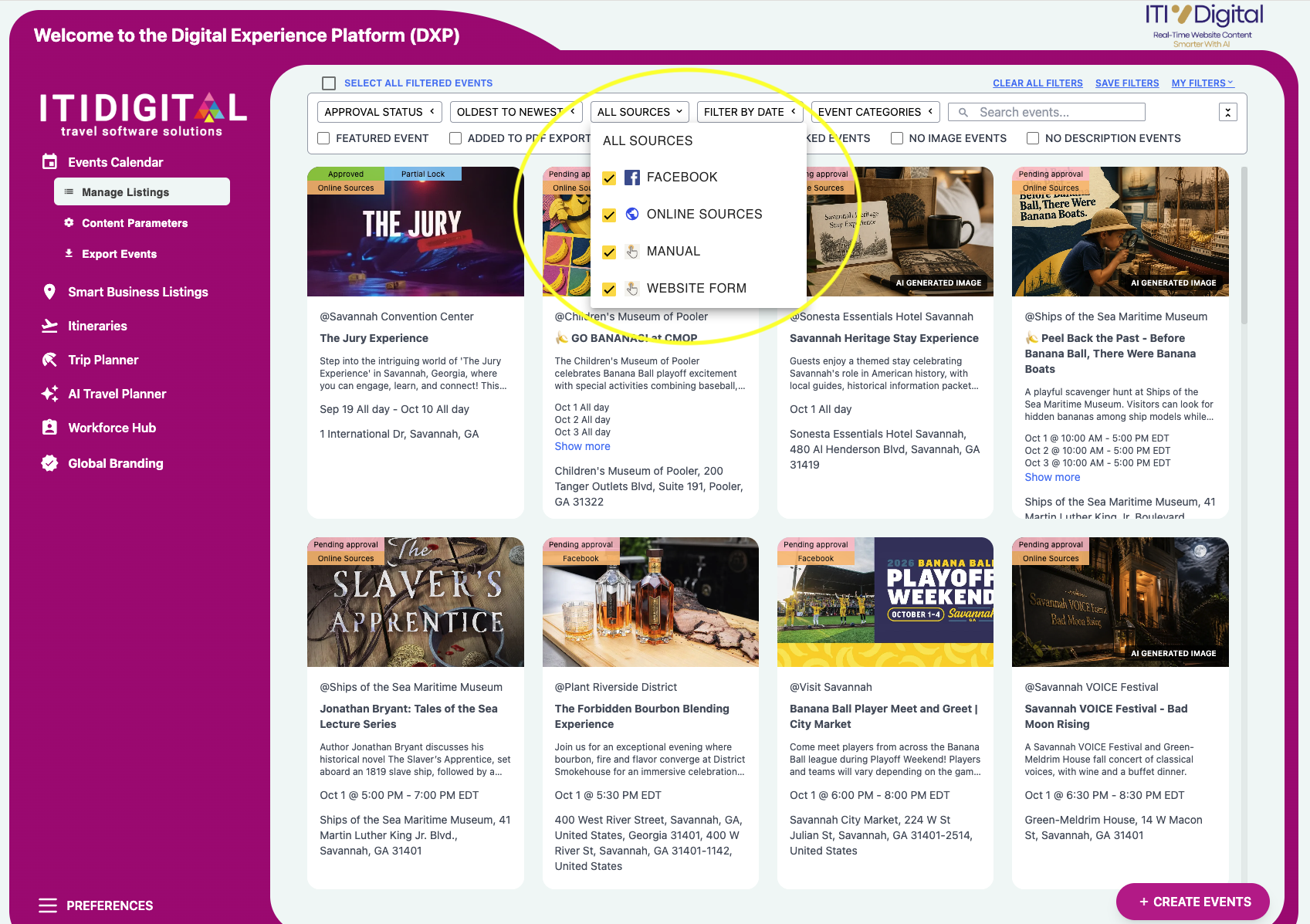
Events from all online sources are now grouped under a single filter option: Online Sources.
What changed: Events from online sources were previously labeled individually, such as Google and Eventbrite. Because the Events Calendar now sources events from many more websites and ticketing platforms across your geofence, these are grouped under Online Sources.
Where to find it: Navigate to Events Calendar → Manage Listings → Event Source filter dropdown.
Available Filter Options:
Online Sources (Events found across websites, ticketing platforms, and other online listings)
Facebook (Events synced from your connected Facebook pages)
Manual (Events added directly by your team)
Website Form (Events submitted by local organizers via your public website form)
How to Filter and Review Your Sourced Events
Log in to your Client Dashboard.
Go to Events Calendar in the left navigation and click Manage Listings.
Click the Event Source filter dropdown at the top.
Select Online Sources to review all automatically discovered local events.
Review, approve, feature, or edit listings to match your destination’s editorial standards.
2. Clear "AI-Generated Image" Badging
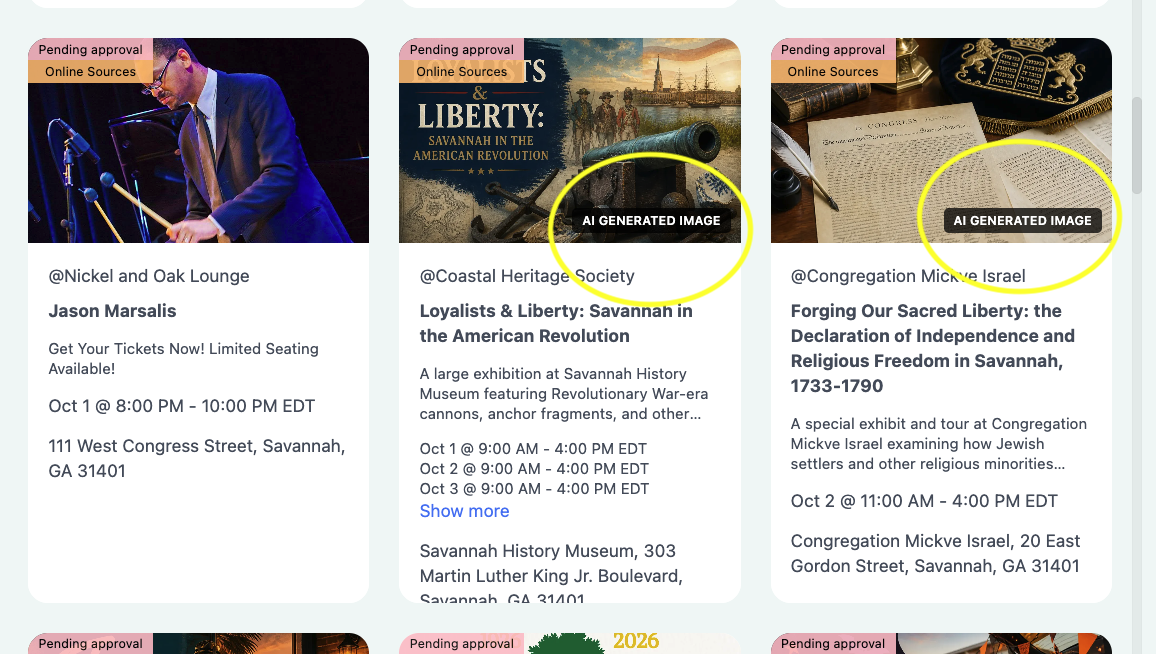
Whenever an event listing utilizes an AI-assisted cover photo (for listings where the source page did not provide a high-resolution image or the event organizer did not upload an image), it will now feature an explicit badge in the event preview and editor. Your team remains in control and can decide to approve as-is or replace the event image.
Why this helps: Provides complete visual transparency and allows you to quickly swap in a custom photo or approved venue graphic whenever you prefer.
Reminder: Smarter Event AI Deduplication
Since August, our Events Calendar has also automatically identified and consolidated events that appear on multiple websites (for example, a concert listed on both a venue site and a local community guide) utilizing smart AI criteria to only show your team what’s best. Read the article on our AI Events Deduplication feature.
Frequently Asked Questions (FAQ)
Do I need to do anything to start receiving events from the new sources?
No. Expanded sourcing turns on automatically on Monday, October 5. New events within your geofence will appear under Online Sources in Manage Listings.
Why do I no longer see Google or Eventbrite as separate filters?
The Events Calendar now sources events from many websites beyond Google and Eventbrite. To keep filtering simple, all of these are grouped under the single Online Sources filter.
Can I replace an AI-generated image with my own?
Yes. Open the event in Manage Listings > Edit, click the event image, and upload your preferred high-resolution photo.
Can I choose specific websites for you to monitor?
Not yet, but it’s on the way. We’re developing Tracked URLs, which will let you share specific websites you’d like monitored for events, similar to how our Facebook Links Tracker works today. We’ll share details once this feature is released.
Need Assistance?
If you have questions about these dashboard updates or the events appearing on your calendar, please contact our support team or open a ticket through the help desk.
Email: support@itidigital.freshdesk.com
Phone: (912) 250-2689
Helpdesk Portal: Submit a Ticket
Was this article helpful?
That’s Great!
Thank you for your feedback
Sorry! We couldn't be helpful
Thank you for your feedback
Feedback sent
We appreciate your effort and will try to fix the article