Managing large sets of business listings just got faster. With the new Bulk Management tools in Dashboard V3, you can apply updates to multiple places at once—whether you're approving listings, generating descriptions, or organizing featured content.
✅ Works within Smart Business Listings → Manage Listings
✅ Supports mass actions like approval, pinning, and PDF export
✅ Real-time counters show selected and total listings
✅ Seamless with filters and saved views
What's Inside?
Complete Overview:
Step-by-Step: Use Bulk Management for Places
Step 1: Log in to your DXP Dashboard
Navigate to: Smart Business Listings → Manage Listings
Step 2: Select listings for bulk action
Click once on any place to select it. A colored border will highlight the selected item. Repeat to select additional listings.
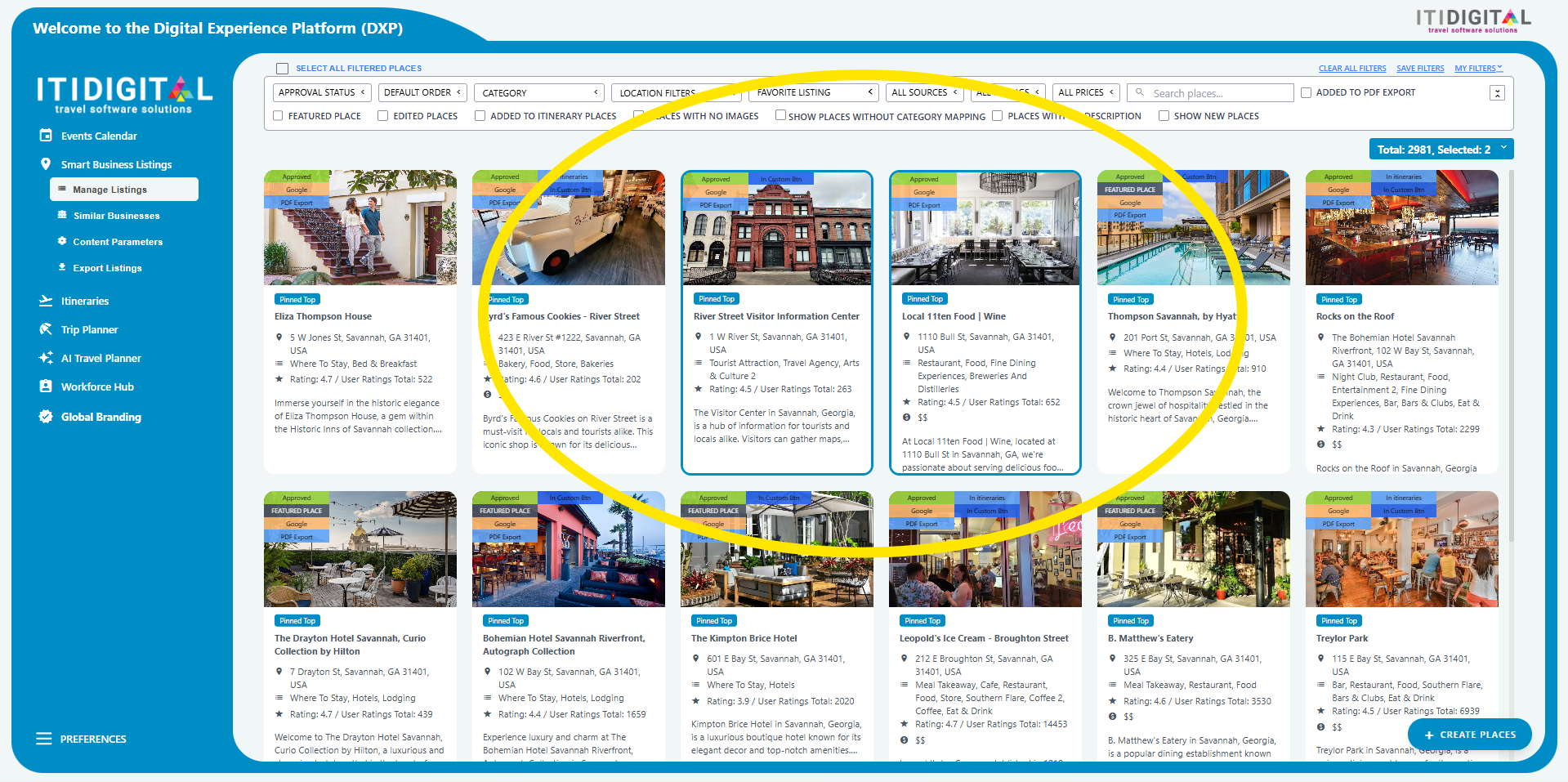
Step 3: Monitor the real-time counter
In the top-right of the dashboard, a dropdown will show:
- The total number of listings (based on current filters)
- The number of selected listings
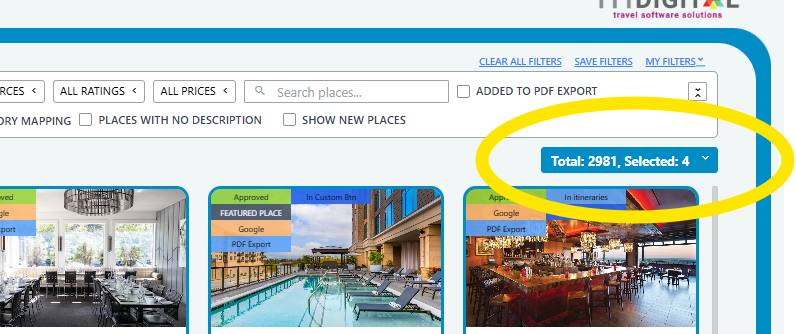
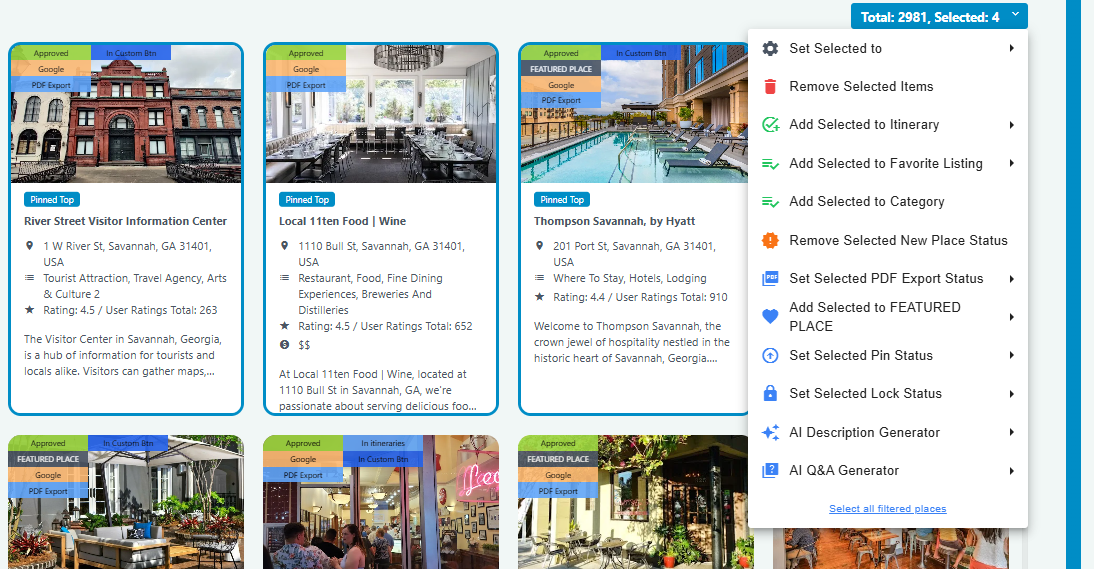
Step 4: Click the dropdown to choose a bulk action
Available bulk actions include:
- Set Selected to: Approve / Unapprove
- Approved listings are visible on your website, unapproved are not visible and are pending your review.
- Remove Selected: remove unwanted or closed business listings.
- Removed listings can be viewed under Content Parameters>Removed Listings and restored by clicking the 'Revert' button.
- Add to / Remove from Itinerary
- Add to / Remove from Favorites Category
- Add to / Remove from Custom Category
- Remove 'New Place' Status: recently aggregated listings are flagged as 'New Places.' This selection will remove that flag.
- Set PDF Export Status: choose business listings to be exported
- Add to / Remove from Featured Listings
- Pin / Unpin from Top: listings are displayed in the order they were pinned.
- Lock / Unlock: Manually updated details should be locked so the system will not overwrite your edits in regular system updates.
Use AI to Generate Descriptions in Bulk
Step 1: Select the Places you want to update
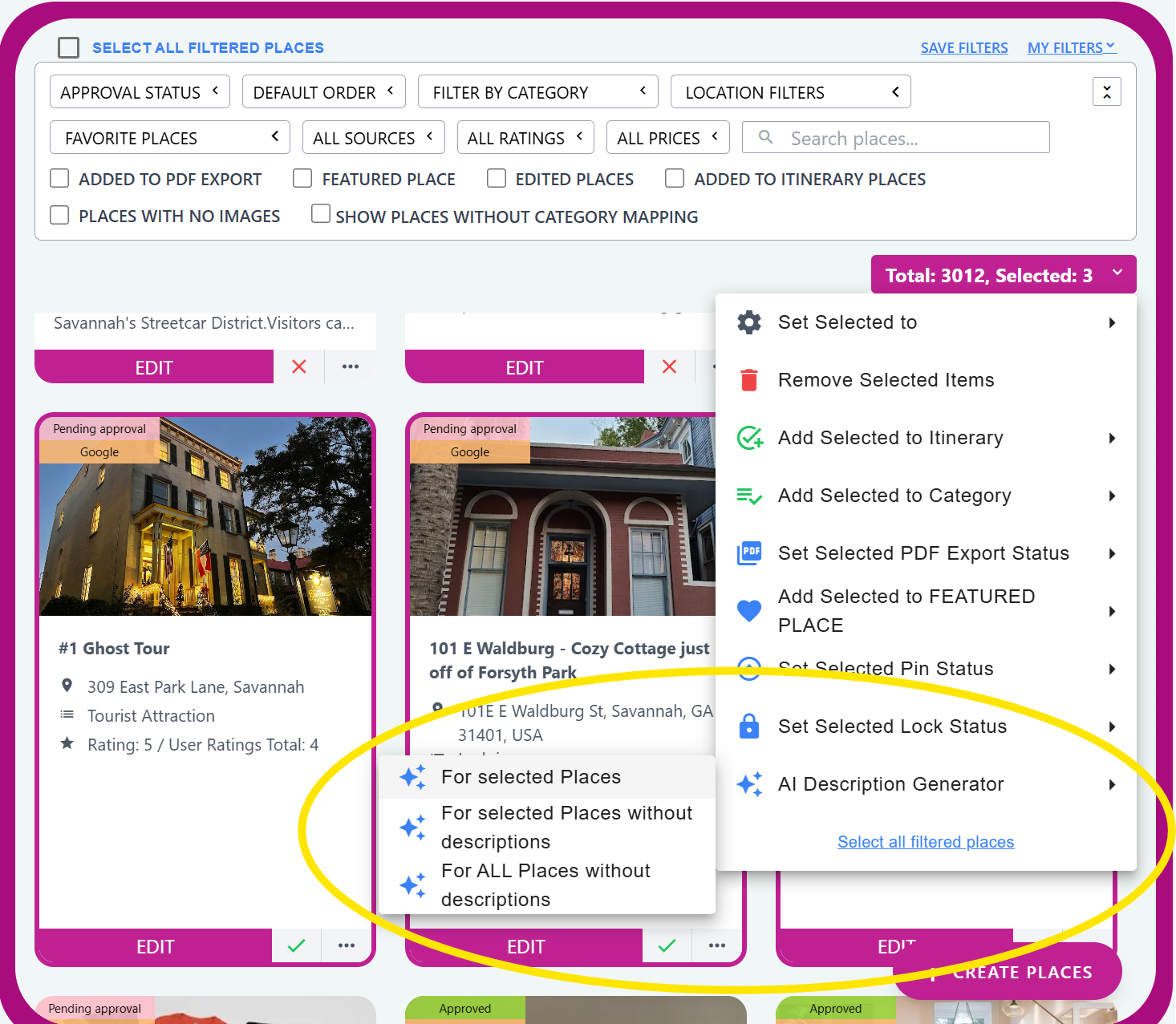
Step 2: Open the dropdown and choose AI Description Generator
Choose one of the following options:
- For Selected Places: generates a description for the selected Place listings
- For selected Places without descriptions: will generate descriptions for only the selected Place listings that DO NOT have a description saved.
- For ALL Places without descriptions: generate descriptions for all Place listings in the Dashboard that do not have a description.
Note: generating descriptions for all Places can suffer from performance issues if working with large numbers of Places. This can be improved by filtering sections or categories and then generating descriptions for that selection at a time!
Step 3: In the pop-up window:
- Choose a Word Count
- Select a Tone or Mood
- Click Generate Descriptions
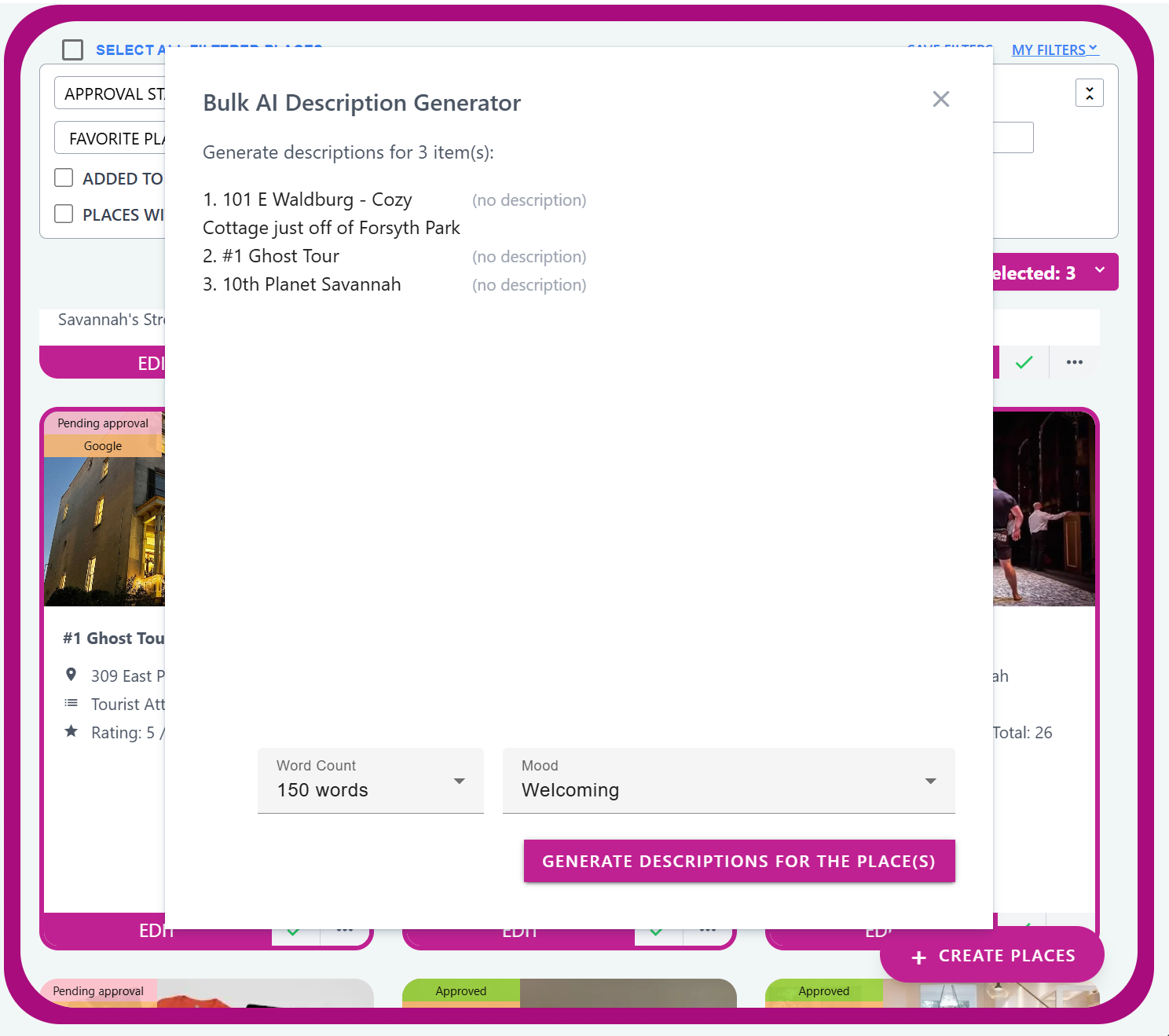
Step 4: After generation, click the top-right popup to review
- Edit or approve the generated content
- Close the window if no changes are needed
Important Notes
✅ Bulk tools work alongside filters and saved presets
✅ Edits apply only to the selected listings
✅ Highlighted borders show selected items for easy tracking
Need Help? Contact Us!
Have questions or need assistance? We're here for you.
Email: support@itidigital.freshdesk.com
Phone: (912) 250-2689
Helpdesk Portal: Submit a Ticket
Was this article helpful?
That’s Great!
Thank you for your feedback
Sorry! We couldn't be helpful
Thank you for your feedback
Feedback sent
We appreciate your effort and will try to fix the article