Workforce Hub: Feature Descriptions & Videos

Created by Evan Kenepp, Modified on Wed, 3 Dec at 10:49 AM by Evan Kenepp

1. Overview

The Job Board is a new module designed to centralize and display employment opportunities for a specific area. It automatically aggregates job listings from selected sources (based on geolocation settings) while also allowing clients to manually create or curate listings.

This solution offers:

  • A dashboard for administrators to manage and configure the job board.

  • A public-facing widget where users browse, filter, and apply for available jobs.

How it helps

  • One unified place for all job opportunities within a region.

  • Automated aggregation of listings based on geolocation and category rules.

  • High flexibility and curation with features like Featured Jobs, Categories, and manual listing management.

  • Improved visitor experience with an intuitive job search interface and advanced filters.

  • Quality control tools such as blocked keywords and blocked companies.


2. Dashboard – Administrator Guide

2.1 Manage Listings

This section shows all jobs available in the system (aggregated or manually created).
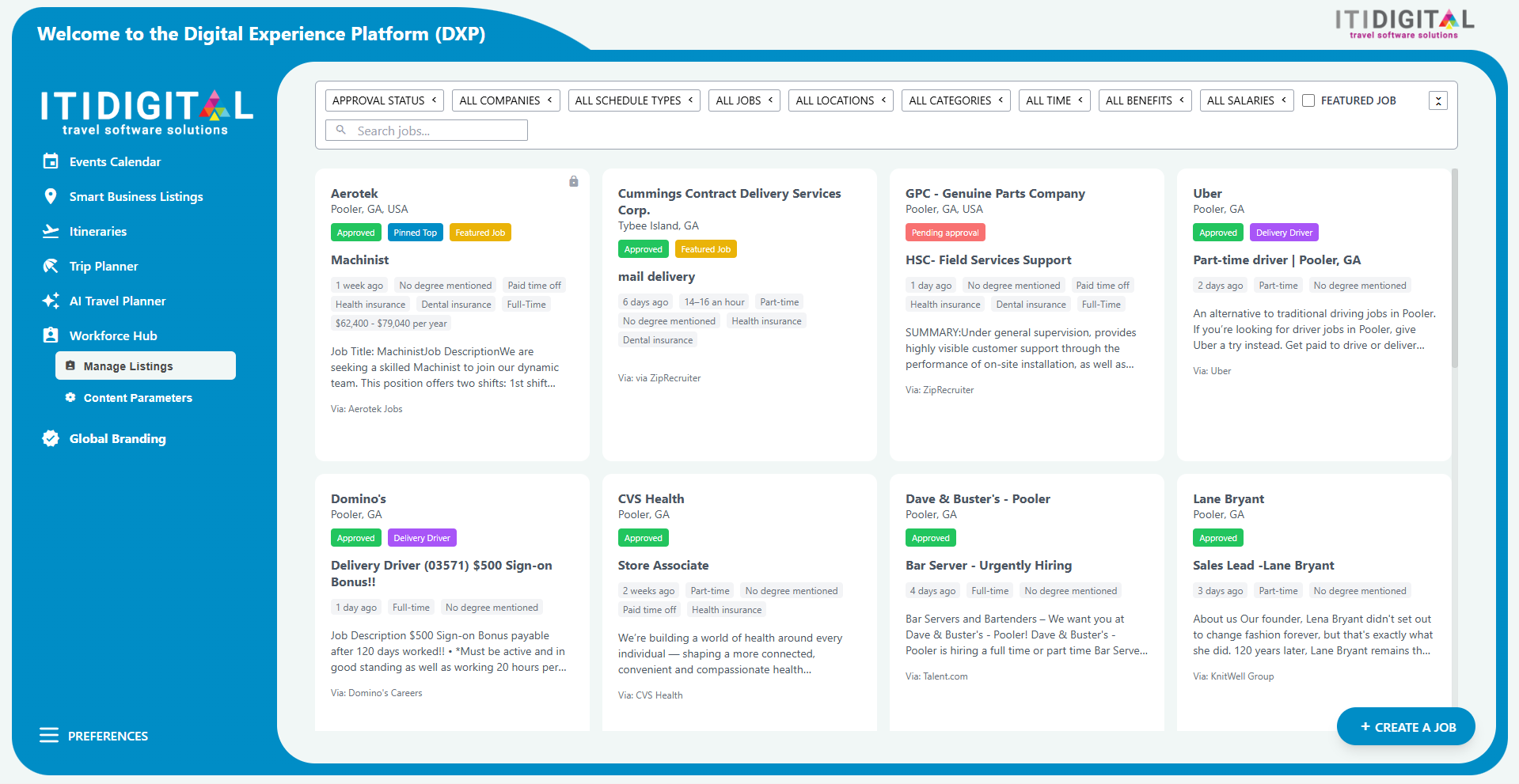

Available Actions

  • Create new job – manually add a job listing.


  • Approve / Unapprove – control which jobs appear on the frontend widget.


  • Filter jobs – by multiple criteria.


  • Search – by title, company, or keywords.


  • Edit jobs – update the job’s details (title, company, description, job type, salary, highlights, etc.) to correct or refine information before publishing.


  • Pin / Unpin – prioritize selected jobs; pinned jobs appear first.


  • Set as Featured / Remove Featured – apply the custom Featured label.


  • Lock / Unlock – prevent changes to specific job listings.


  • Add to / Remove from Custom Category – assign jobs to curated categories.


  • Remove job from board – hide job from public widget (moves to Manually Removed Jobs).


All these actions (besides Edit job) can be done for each job, or in bulk for multiple selected jobs. 


2.2 Content Parameters

This section controls the configuration of the job aggregation and presentation.
It includes multiple subsections:

2.2.1 Geolocation Parameters

Define the geographic areas from which job listings are collected.

Capabilities:

  • Add new geolocations (street, neighborhood, city).

  • Remove existing geolocation.

Notes:

  • Locations entered during onboarding appear here.

  • Changes may affect aggregated results—contact support for major updates.


2.2.2 Manually Removed Jobs

Displays job postings manually taken off the board.

Capabilities:

  • Restore a job (green revert icon)

  • Permanently delete a job (red trash icon)

  • Search by job title or company


2.2.3 Featured Job Listings

Highlight selected jobs with a custom label.

Capabilities:

  • Set the Featured Job Text (e.g., “Top Opportunities”, “Hot Jobs”)

  • Save and apply label to any job marked as Featured

Screenshot 2025-11-27 at 11.28.07.png


2.2.4 Favorite Job Categories

Create custom groups of job postings shown as separate categories on the website.

Capabilities:

  • Enable/disable Favorite Job Categories

  • Add Custom Category

  • Edit category name

  • Copy embed URL (via link icon)

  • Delete category


Note – Jobs can be assigned to categories directly from Manage Listings tab


2.2.5 Blocked Keywords

Prevent unwanted listings from being imported or displayed.

Inside this section there are 2 tools: Block Keywords for Job Listings and Block Jobs by Company Names

A. Block Keywords for Job Listings

Use this tool to prevent certain types of job listings from being imported into your dashboard or shown on your public-facing widgets.

How it works:

  • Enter specific keywords (e.g., "scam," "spam," "work from home") that you want to block.

  • Job listings containing these keywords in their title or description will be automatically excluded from the system.

  • This helps maintain quality and relevance of job listings displayed to your visitors.

To manage blocked keywords:

  1. Type a new keyword in the input field and press Enter to add.

  2. To remove a keyword, click the X next to it.

  3. Click Save to apply changes.

Use this feature to maintain content quality and avoid displaying job listings that don't align with your destination's employment opportunities.


B. Block Jobs by Company Names

Use this tool to prevent job listings from specific companies from appearing in your dashboard or public-facing widgets.

How it works:

  • Enter specific company names (e.g., "Spam Corp," "Fake Jobs Inc," "Scammer LLC") that you want to block.

  • Job listings from these companies will be automatically excluded from the system.

  • Company name matching is case-insensitive and looks for exact matches.

To manage blocked companies:

  1. Type a company name in the input field and press Enter to add.

  2. To remove a company, click the X next to it.

  3. Click Save to apply changes.

Use this feature to maintain content quality and avoid displaying job listings from companies that don't align with your standards.


For both of these tools, there is a different table where you can review all the jobs that were blocked by the keywords or by the company name.


3. Frontend Widget – User Guide

The widget is the public interface for job seekers.

Available Features

  • View all jobs (with pagination)

  • Search by keyword (title, company, etc.)

  • Filter by:

    • Location

    • Company

    • Job type

    • Job source

    • Date posted

    • Salary range

    • Benefits

  • Open job details

  • Apply to the job


Was this article helpful?

That’s Great!

Thank you for your feedback

Sorry! We couldn't be helpful

Thank you for your feedback

Let us know how can we improve this article!

Select at least one of the reasons
CAPTCHA verification is required.

Feedback sent

We appreciate your effort and will try to fix the article